 NexIP官方博客
There are three ways to route only one application through a proxy, ordered by invasiveness from low to high: the software's built-in proxy settings, launching a browser with separate instance parameters, and whitelist rules in a process proxy tool. If the first two work, avoid the third—they don't install a traffic-splitting driver into the system and are easier to roll back. Only when the target software has neither proxy options nor is a browser do you need a process proxy tool to split traffic at the network layer.
First, why you shouldn't take the easy route with system proxy
Both Windows' "Internet Properties" and macOS's system proxy are global. Once enabled, instant messaging, cloud drives, and background updates from various clients will tunnel through the proxy: metered residential plans will have their quota consumed by these unrelated flows; domestic office and payment apps suddenly logging in from overseas IPs can trigger their own异地 risk controls.
The opposite problem is equally common—many third-party clients and apps using non-HTTP protocols don't read system proxy settings at all. You think it's configured, but that software is still connecting directly, and the "active" you see is just the browser's behavior. So no matter which method you use, the final verification step is essential.
First choice: go through the software's own network settings
If the target software has built-in proxy configuration, filling it in directly is the cleanest approach. It doesn't affect any other programs on the system, and you won't need to reconfigure when reinstalling tools or changing network environments.
Common examples: IM clients like Telegram have a dedicated proxy page in settings; Postman and various API debugging tools have Proxy configurations; for scraping scripts, it's even simpler—requests, httpx, aiohttp use the proxies parameter or environment variables, while Playwright and Puppeteer pass a proxy object in launch arguments. For specific script implementations, refer to How to integrate residential proxies into Python scraping scripts.
When filling in, pay attention to three things: choose the correct protocol (HTTP proxy and SOCKS5 usually have different ports), fill in authentication completely (username/password auth requires credentials; IP whitelist auth requires adding your public IP to the whitelist first), and confirm that this setting only applies to that software and isn't written into the system.
Browser: use a separate instance + separate data directory
Chromium-based browsers (Chrome, Edge, etc.) don't need any extra tools—you can launch an instance with command-line arguments where "only this window goes through the proxy," leaving the main browser and other system network traffic completely unaffected.
"C:\Program Files\Google\Chrome\Application\chrome.exe" --proxy-server="socks5://代理地址:端口" --user-data-dir="D:\proxy-profile"Same on macOS:
/Applications/Google\ Chrome.app/Contents/MacOS/Google\ Chrome --proxy-server="socks5://代理地址:端口" --user-data-dir="$HOME/proxy-profile"--user-data-dir must be included, pointing to a new empty directory. Without it, if Chrome is already running, the new command will just hand the tab to the existing process, and the proxy parameters are ignored—this is the most common failure point. Using a separate directory also has a side benefit: cookies and login states are separated from the main browser, and the egress corresponds one-to-one with the browser profile.
There's a must-know limitation: Chromium doesn't support SOCKS5 username/password in --proxy-server. If your proxy uses username/password authentication, either switch to an HTTP proxy (the browser will prompt for credentials on first access, valid for this instance) or use IP whitelist authentication or port forwarding to get a credential-free entry point. For the trade-offs between authentication methods, see How to choose between proxy IP username/password and whitelist authentication.
Also, socks5:// in Chromium by default resolves domain names on the proxy side, avoiding local DNS leaks; writing socks4:// does local resolution—don't mix them up.
General approach: process proxy tool whitelist rules
If the target software has no proxy settings and isn't a browser (game clients, emulators, desktop management tools, old ERP systems, etc.), use Proxifier, Netch, or the built-in process proxy feature of your proxy provider's client.
The core logic in one sentence: default all direct, only route specified processes through the proxy. The order is as follows:
- First add the proxy server. In Proxy Servers / server list, fill in address, port, choose HTTP(S) or SOCKS5 as per your provider, select username/password authentication and enter credentials. After filling, use the tool's Check / Test button to confirm connectivity before proceeding.
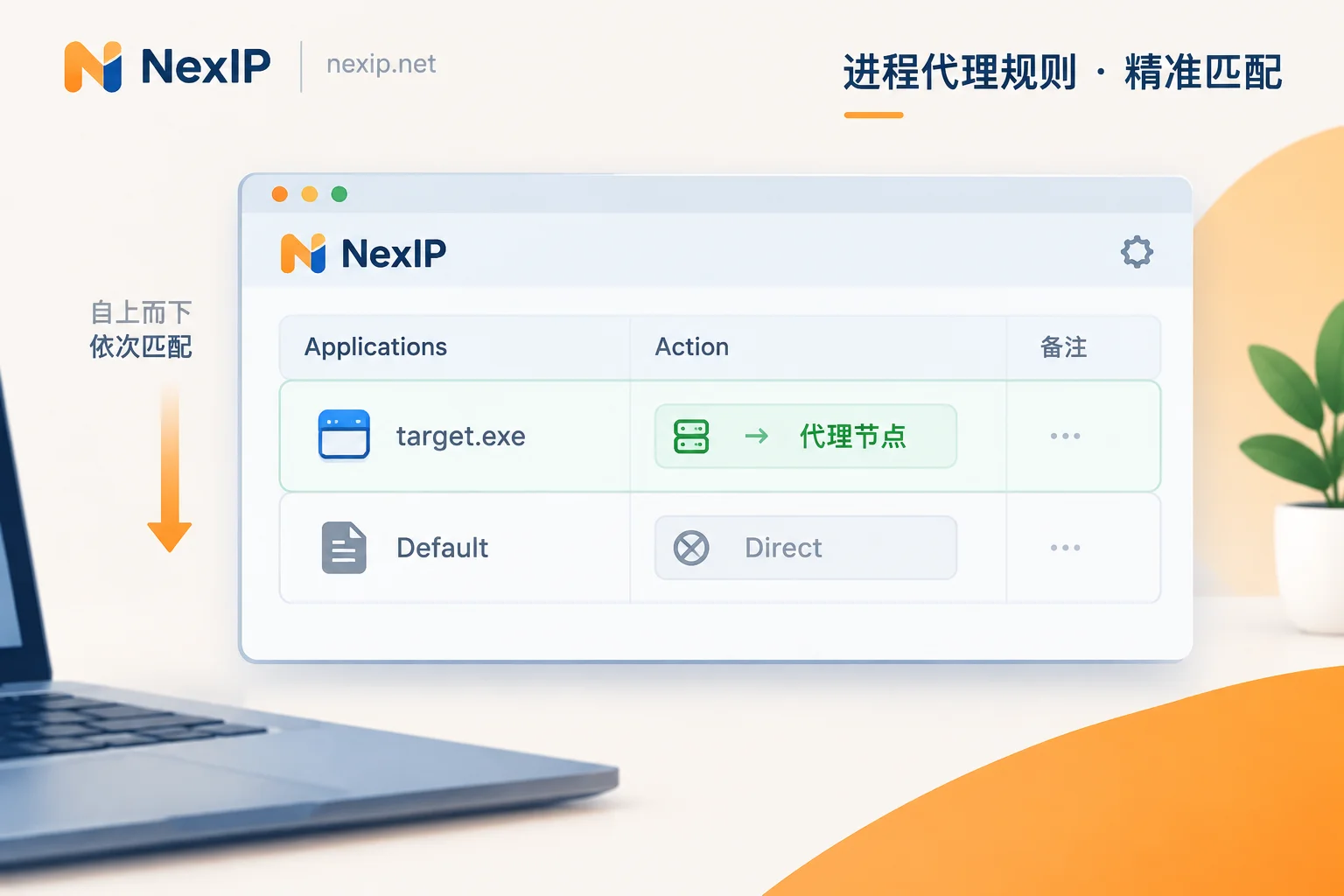
- Change the Default rule's action to Direct. This is key. Proxifier's Default rule can't be deleted, but you can change its Action from Proxy to Direct. If you don't, it will catch all processes, effectively enabling a global proxy.
- Create a new rule above Default. In Applications, enter the target program's executable name (
target.exe) or full path, and set Action to the proxy node configured in step 1. Rules match top-down, so order matters. - For finer control, within the same rule you can also limit destination ports or domains—e.g., only route that software's access to a specific domain through the proxy and direct the rest.
Find the process that actually initiates connections
This step has the highest failure rate. Many software launchers and actual communication processes are separate: especially common in games, Android emulators, and multi-instance clients. If you only add the main program to the rule, the child process that actually generates traffic still goes direct—and you see "rule active" in the tool and think it's configured.
The method: first run the target software normally and trigger a network action, then in Windows Task Manager's "Details" tab, expand the process tree as needed to find the process name actually initiating connections; right-click "Open file location" to get the full path. If the process name is unclear, Process Explorer's TCP/IP connection list is more intuitive. On macOS, use Activity Monitor or lsof -i for comparison. Add the found process to the rule, and include both launcher and child processes if necessary.
Protocol and DNS
Choose SOCKS5 if available—it has better TCP/UDP compatibility than HTTP proxies and is less likely to stall with non-HTTP software. Also, in the tool settings, check options like "Resolve hostnames through proxy"; otherwise the target process will make local DNS queries, resulting in a proxy egress IP but local ISP DNS—an inconsistency that is itself a signal.
Also note: such tools usually require driver or system network extension permissions (on macOS, manually allow in System Settings) and may conflict with some security software or VPN clients; if the entire machine's network acts up after installation, troubleshoot this layer first.
After configuration, do a two-step verification—don't just check one side
Step one: from inside the target software with proxy configured, make a network request to https://ipinfo.io/json, and verify that the returned ip, country, city match your purchased node; also check the org field to determine if it belongs to an ISP or a data center—this matters more than country match for scenarios like store backends and social media. If the software can't open the page, use its built-in network diagnostics or check the tool's traffic log for the target address.
Step two: from a normal browser or terminal without proxy configuration, access the same endpoint, curl ipinfo.io/json, and confirm it still returns your local broadband IP. This step proves you've done targeted routing, not a global proxy.
If you used a process proxy tool, also check its Connections / Traffic Log: only the target process lines should show the proxy node, and all others Direct—that's true configuration. After using for a while, review the log again; some software updates spawn new child processes that the rules may not cover.
Should the egress rotate or stay fixed?
Once the channel is established, what really determines success is what egress you put in. The criterion is whether the software's tasks need "changing IPs" or "not changing IPs."
Need rotation—for data scraping, SERP monitoring, ad verification, etc., where the same process sends many requests and seeks coverage and success rate, use dynamic residential egress. If you estimate quota by request volume and traffic is controllable, choose Dynamic Residential Traffic Plan billed by traffic; when you need the same IP for multiple consecutive steps, use sticky sessions. If running long-term high-concurrency and traffic is hard to estimate, a bandwidth-billed, unlimited-traffic dynamic bandwidth plan is more worry-free. For usage estimation, see How to estimate usage for Dynamic Residential Traffic Plans.
Need fixed—for store backends, social media accounts, TK operation clients, assign dedicated egress; the core requirement is that every login comes from the same exclusive IP. In this case, use Static Residential Long-lasting IP, exclusive and fixed, billed monthly or yearly, with free replacement if it fails. Among the three subtypes—home broadband native, home broadband broadcast, and data center—TK operation officially recommends home broadband native. For short project cycles, temporary verification, or one-off tasks, static short-duration is more cost-effective; see How to choose between static short-duration and static long-lasting residential IPs; for specific TK scenario tiers, see Which type of residential IP to use for TK operation.
Process proxy only solves "which egress the traffic goes out from." If your scenario also involves browser fingerprint isolation or the accounts themselves, those are separate layers—don't expect one proxy rule to solve everything.
Common pitfalls
- Wrong rule order: New rules must be above Default, otherwise they'll never match.
- Only added the launcher: As mentioned, main and communication processes are separate; after configuration, check the log to confirm.
- Whitelist auth + network change: The whitelist is bound to your machine's public egress IP; if you switch to another network or redial your broadband, it won't connect. For frequent mobile work, username/password auth is more reliable.
- Software updates go through proxy on their own: Some clients have independent update processes; if captured by rules, large downloads will waste traffic quota—worth excluding separately when billed by traffic.
- LAN and loopback addresses: Ensure the tool excludes local and private addresses from the proxy, otherwise internal services will fail.
The configuration logic is similar across tools, but menu names and layouts change with versions—refer to your client's current interface when operating.




Comments(0)