 NexIP官方博客
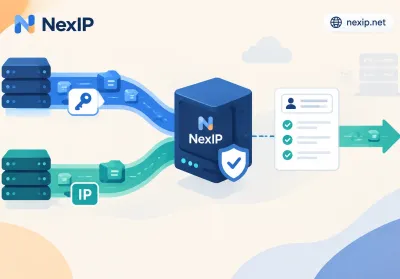
Many friends encounter issues with no traffic or account bans after registering.
This is often due to overlooking an important detail: the IP environment.
My first Twitter account was banned because of the IP environment. Later, a friend recommended using static residential IP, and I've been using it ever since.
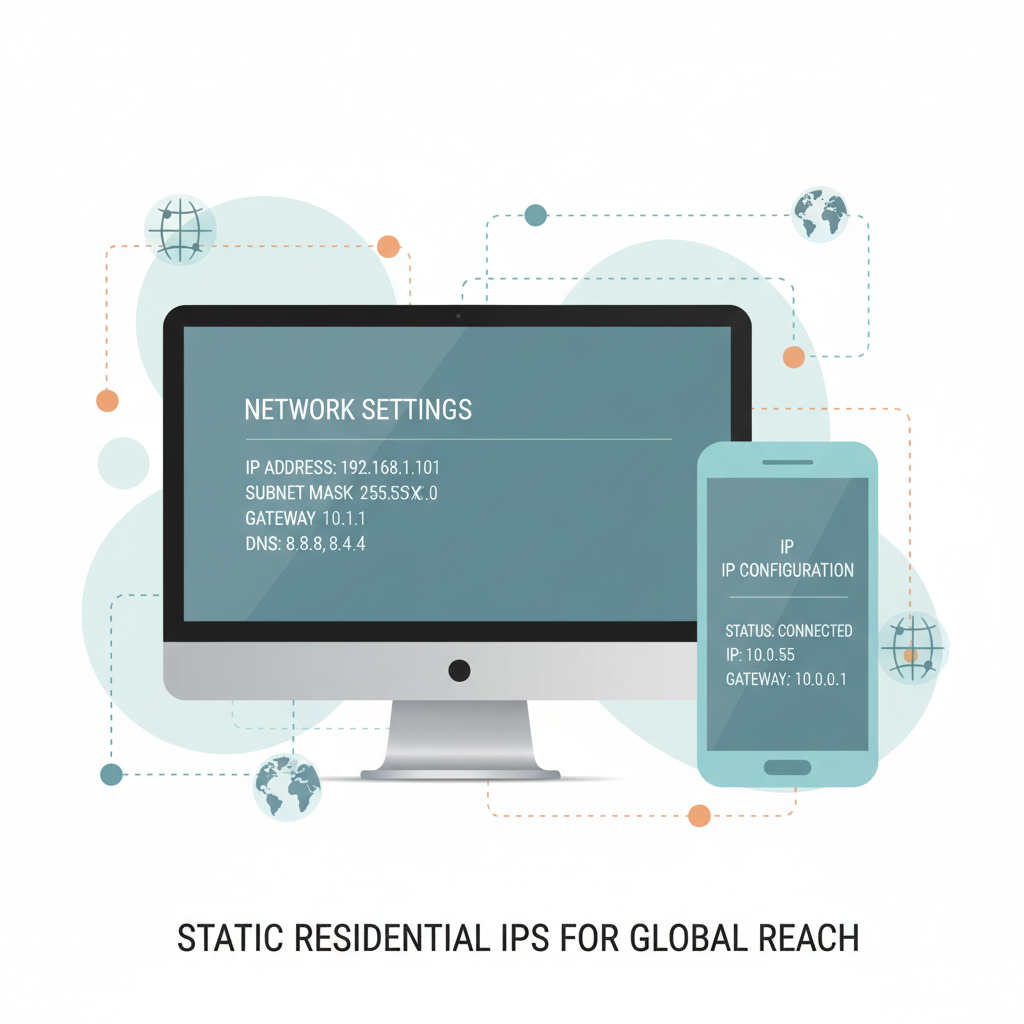
Today, I'll share a tutorial on configuring IP on Windows and iOS, suitable for cross-border e-commerce, overseas social media operations, etc. Bookmark it! 👇
Preparation:
Before starting, make sure you have:
- Primary proxy: A stable airport/VPN subscription. I use NexIP shared by a Twitter friend.
- Secondary proxy: Static residential IP info (usually includes IP, port, username, password). I use NexIP, which offers many choices and reliable after-sales.
When purchasing: Choose static residential IP. New users get discounts. When selecting a region, ensure it's a dedicated IP with Socks5 protocol.
After purchase, click on purchased lines to view the IP info below.
Everyone is experienced, so I won't go into details. You get it!
Windows configuration tutorial.
- Open Clash Verge, import the airport subscription node, and select a low-latency proxy.
- Open V2RayN accelerator, click Profile, select Add Socks, and enter the purchased static residential IP node info.
Now the computer configuration is almost done. Open Clash Verge, click Virtual NIC mode, and enable TUN mode.
Finally, open V2RayN and select Auto-Configure System.
Windows configuration is now complete.
iOS (Apple) configuration tutorial. Open Shadowrocket (Little Rocket) and click the ➕ in the top right corner.
Follow the steps in the image: select Socks5 type, enter IP info, and select the airport proxy node.
Set Global Route to Proxy, confirm the node, and toggle on Little Rocket.
This is my method for using a static IP. If you have simpler methods, feel free to comment below...