 NexIP官方博客
When you stream to an overseas live room and OBS shows frame drops, and viewers see stuttering and jitter, don’t panic. The core idea of this overseas live streaming lag and jitter troubleshooting guide is simple: break the lag into four measurable metrics—dedicated upload bandwidth, jitter, packet loss rate, and exit IP identity—and test each one. Then decide whether to adjust local upload, switch routes, or change exit type based on the results.
Cross-border live streaming isn’t like watching videos where download speed matters most; pushing a stream uploads your video from your computer to the platform’s servers, so the real consumer is upload bandwidth. A June 2026 TikTok live optimization guide noted that stream lag and frame drops mainly depend on upload bandwidth reserve, jitter and packet loss on the public route, and whether the exit IP is a clean native residential line.
First, Identify the Symptom Category: Encoder Drops vs. Viewer Stuttering Point to Different Layers
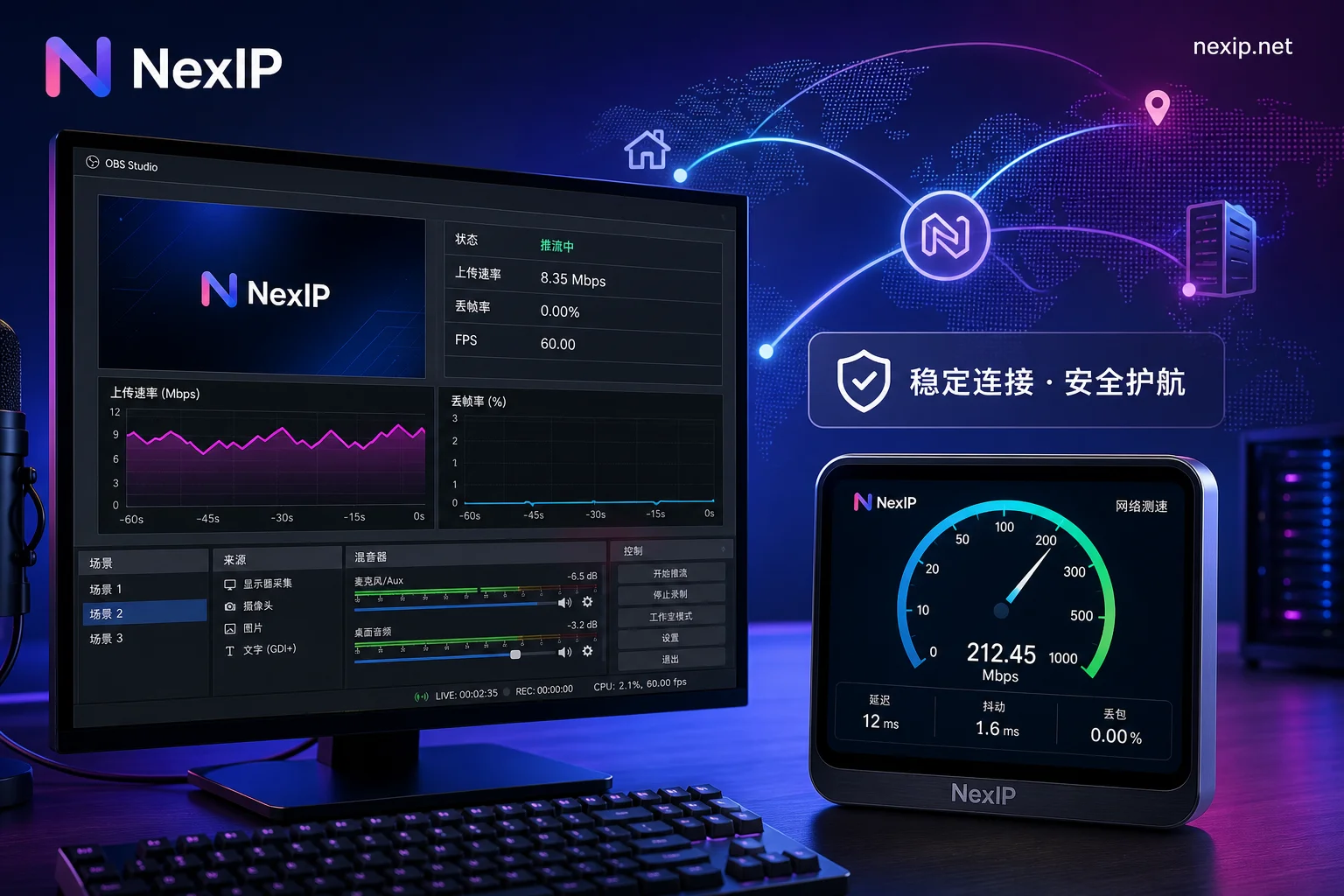
Before troubleshooting, categorize the symptoms. Open your streaming software (e.g., OBS) and check the dropped frames in the output panel. If the encoder itself is dropping frames, the issue is likely local encoding or upload transmission. If the encoder isn’t dropping frames but viewers report stuttering, the problem is more likely on the public network route or platform-side distribution.
Separating these two symptom types prevents you from switching nodes right away. Many streamers switch proxies or routes at the first sign of lag, but if the problem isn’t the exit, you’ll just make things worse.
Metric 1: Dedicated Upload Bandwidth Reserve—How Much Headroom for 1080P and 4K, and How to Measure It
Many people mistakenly think fast download speeds mean they can stream, but home broadband upload and download are often asymmetric, and live streaming truly relies on dedicated upload bandwidth. “Dedicated” means this bandwidth can’t be shared or squeezed by neighbors during peak hours.
Based on industry reference ranges (not official platform standards): 1080P streaming requires at least 6-10Mbps upload, while 4K requires 15-20Mbps or more. Note that these are streaming bitrates; you should also reserve extra, typically 30%-50% more, to handle network fluctuations.
| Resolution | Recommended Streaming Bitrate Range | Suggested Actual Upload Headroom (including 30%-50% reserve) |
|---|---|---|
| 1080P | 6-10Mbps or more | 10-15Mbps |
| 4K | 15-20Mbps or more | 20-30Mbps |
Note: These values are third-party reference ranges, not official platform standards.
How to measure? Don’t just look at speed test numbers. The most direct way is to monitor your streaming software’s real-time bitrate and dropped frames: set a target bitrate (e.g., 8Mbps) in OBS. If the stream stays stable without drops, your upload reserve is sufficient. If frames drop frequently, try lowering the bitrate step by step to see where it stabilizes. Another method is to have a local device continuously upload a large file to a public server, using tools like iperf3 to measure real upload throughput.
Metric 2: Jitter—Why Normal Average Latency Can Still Cause Screen Tearing
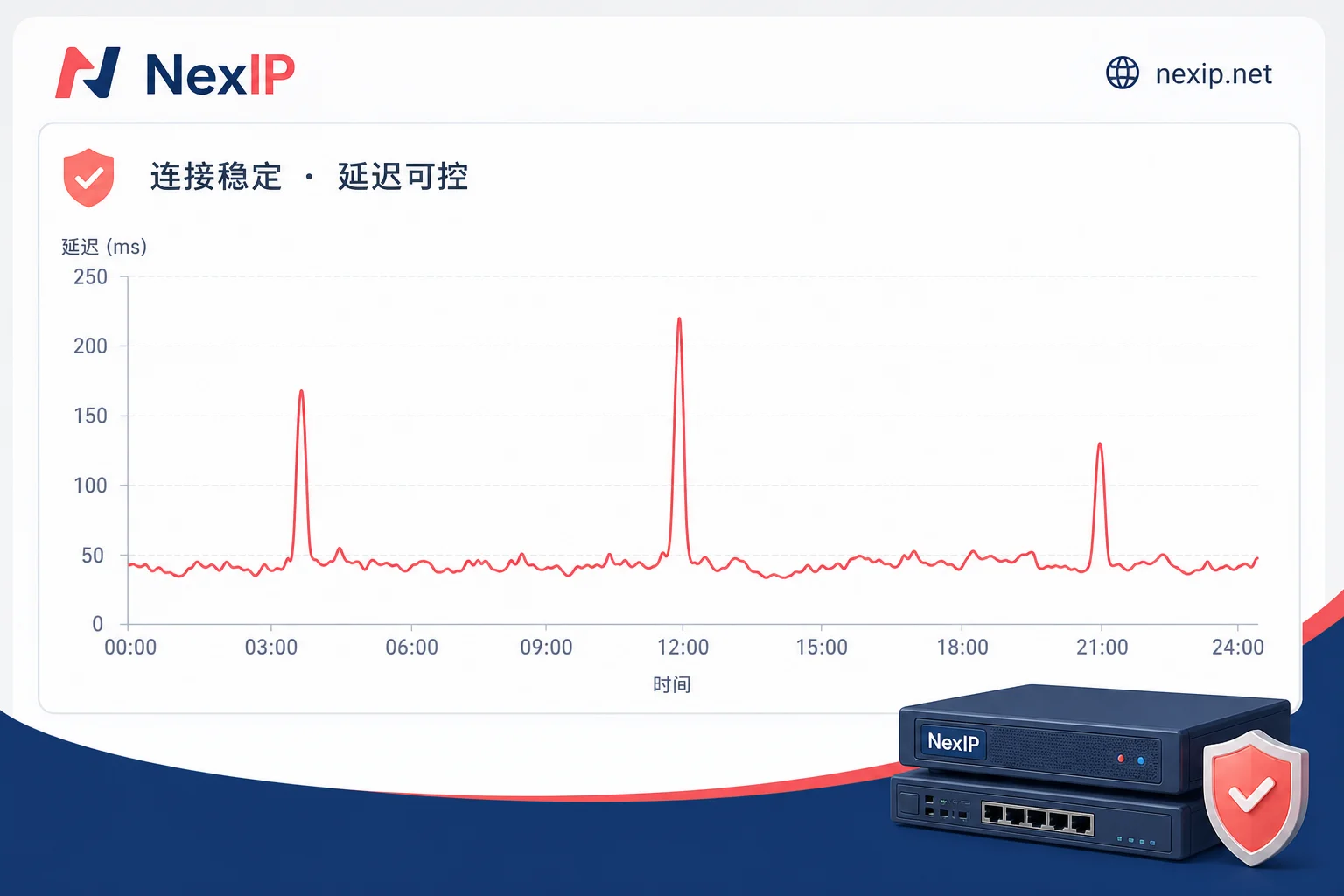
Jitter is the variation in latency. Normal average latency doesn’t mean low jitter. For example, an average of 50ms with fluctuations between 20ms and 80ms can make the picture look like crumpled paper.
A single ping test is meaningless because network conditions change over time. The correct approach is to sample continuously over the entire stream duration (e.g., 1 hour), pinging an overseas server every few seconds and recording latency fluctuations and spikes. As a rule of thumb, latency jumps consistently above 30-40ms are cause for concern (this is an engineering heuristic, not a publicly tested standard).
You can use Excel or log tools to record observations. Focus on the waveform: a smooth waveform indicates a stable link, while a jagged or spiky one suggests jitter.
Metric 3: Packet Loss Rate—What the 0.2% Threshold Means and How to Monitor Continuously During a Stream
Packet loss refers to data packets being lost during transmission, which is fatal for live streaming. Industry reference data shows that a packet loss rate above 0.2% can cause lag. This value comes from a third-party TikTok live optimization guide from June 2026, but it’s not an official platform standard—platforms like TikTok never publish internal packet loss thresholds, so we treat 0.2% as a warning line based on engineering experience.
Live streaming is extremely sensitive to packet loss because video frames are encoded continuously; losing a key frame can cause subsequent frames to fail decoding, leading to artifacts or stuttering. Therefore, packet loss monitoring shouldn’t be limited to a minute; you should observe it over the entire streaming period, e.g., recording the average packet loss every 5 minutes.
Metric 4: Exit IP Identity—How to Check ASN Registration and Hosting Tags
If bandwidth, jitter, and packet loss all pass but streaming remains unstable, check the exit IP’s identity. Here, it’s not about whether the IP’s geographic location matches the target country, but two key points: who is the ASN registrant of this IP, and whether it carries a “Hosting” or data center label.
Ordinary data center IPs typically have their ASN registered to data centers or commercial cloud providers, while home broadband ASNs belong to telecom operators. Many platforms’ risk control systems tend to trust native residential ASNs.
How to check? Use tools like IPinfo, enter the exit IP, and view the ASN entity and type label. If it shows “hosting” or “data center,” it’s a data center IP. If it’s operator-native residential, there’s usually no such label. This is also why data center IPs are easily flagged as high-risk IPs.
Here we distinguish between Dual ISP and Single ISP: Dual ISP proxies have both registrar ownership and actual network deployment provider attributes, making them better than ordinary data centers and single ISP proxies in avoiding data center ASN characteristics and providing network redundancy. However, note that using residential IPs doesn’t guarantee smooth streaming; it only reduces the risk of identity detection, and network quality still depends on the route.
Two Common Misjudgments: Fast Download Speed ≠ Enough for Streaming, Frequent Node Switching ≠ More Stability
Misjudgment 1: Fast download speed but streaming lags
Fast download speed only means sufficient downstream bandwidth, while streaming consumes upload. Home broadband is highly asymmetric; for example, a 500Mbps download might only have 30Mbps upload, and live streaming 1080P might require a stable 10Mbps upload. So the answer to “why is streaming still laggy even with fast download speed” is clear: you’re measuring the wrong direction—you should test upload.
Misjudgment 2: Frequent node switching is more stable
During a live stream, if the exit IP changes frequently, it can not only cause session interruptions but also lead to identity inconsistency, which may trigger risk control. Cross-border e-commerce streaming needs session stickiness, meaning the IP must remain unchanged throughout the stream. The more you switch nodes, the more unstable it becomes.
Deciding Actions Based on Metric Results: Adjust Local Upload, Switch Routes, or Change Exit Type
The final step of this guide is to map the results of the four metrics to concrete actions. After troubleshooting, decide the next move based on metric results; the three paths are not interchangeable.
| Metric Result | Possible Cause | Preferred Action |
|---|---|---|
| Insufficient upload bandwidth | Low local home upload | Upgrade upload bandwidth or lower streaming bitrate |
| High jitter, high packet loss | Poor public route quality | Switch route or optimize return path |
| First three metrics normal but platform-side anomaly | Exit IP identity or throttling | Change exit type (e.g., Dual ISP residential IP) |
If upload bandwidth is insufficient, even the best IP won’t help; if jitter and packet loss are high, changing the exit won’t improve physical link quality. Only when the first three metrics pass and platform-side issues persist should you consider adjusting exit identity.
How to Choose When Changing Exit Type: Static Long-Term, Static Short-Term, and Dynamic Residential Bandwidth Roles
When the first three metrics pass and only exit identity needs adjustment, your selection approach can be: for long-term single live rooms needing a stable session, use static long-term residential IPs; for short-term campaigns or multi-account rotation, static short-term works; for multiple live rooms in parallel, allocate budget based on bandwidth rather than IP count, and choose dynamic residential proxy bandwidth plans.
NexIP’s static long-term residential IPs, static short-term residential IPs, and dynamic residential proxy bandwidth plans roughly correspond to the three scenarios above. The region/ASN targeting feature aligns the exit with the target market of the stream; see the TikTok overseas multi-region operation network setup guide for specific implementation. For example, when streaming locally in the US, choose an ASN from a US local operator to avoid cross-ocean detours. But remember, IP type doesn’t guarantee smooth streaming; network quality still depends on the route.
If your issue leans more toward route optimization, refer to How to Troubleshoot and Optimize High Latency in Residential Proxy Networks; to confirm whether your exit is true Dual ISP, see How to Detect Whether a Residential IP Is True Dual ISP.
Pre-Stream Self-Check Checklist
Condense this guide into a 10-minute pre-stream checklist and go through each item:
- Check upload bandwidth: Actually test upload speed to ensure it’s at least 1.5 times your streaming bitrate (heuristic redundancy advice, not industry-tested value).
- Continuous jitter sampling: Ping an overseas server for 3 minutes before starting and observe whether fluctuations exceed 40ms (engineering heuristic, no public test standard).
- Packet loss observation: Use a tool with packet loss statistics to measure the 1-minute average packet loss; if it exceeds 0.2%, fix the route first.
- Verify exit ASN and region: Confirm the exit IP’s ASN belongs to the target country’s operator, not a data center.
- Test session persistence: Ensure the IP doesn’t drift for at least 2 hours.
FAQ
Is overseas streaming frame dropping always a network issue?
Not necessarily. Frame drops can come from the network or insufficient computer encoding performance. First check CPU usage and render lag in OBS; if CPU is saturated, reduce bitrate or lower quality. If CPU is normal and network frame drops persist, follow the metrics in this guide.
How much upload bandwidth is enough for 1080p streaming?
It’s recommended to have at least 6-10Mbps, plus a 30%-50% reserve, meaning a stable upload of 10-15Mbps is safer (heuristic redundancy advice, not industry-tested value). If you set a bitrate of 8Mbps but only have 8Mbps upload, any slight fluctuation will cause frame drops.
What packet loss rate causes streaming lag?
Industry reference suggests over 0.2% can cause lag, but this is not an official platform standard; it’s an engineering rule of thumb. Live streaming is extremely sensitive to packet loss; even 0.1% can cause noticeable quality degradation on key frames.
How to troubleshoot TikTok live stream jitter?
First check if the streaming software itself drops frames; if not, test network jitter. Use continuous ping or professional tools to see latency fluctuation ranges; if fluctuations exceed 30-40ms, it’s a jitter issue. Try switching to a wired connection or optimizing the route.
For cross-border streaming, is residential IP or data center IP more stable?
The two don’t directly determine stability, but identity preferences differ. Data center IPs’ ASN might be labeled as hosting, while residential IPs appear closer to ordinary users, gaining more favor in risk control. However, stability still depends on bandwidth and route quality; if you want an exit closer to native users, residential IP is the trend.



Comments(0)