 NexIP官方博客
Whether in cross-border e-commerce, social media promotion, or web data collection, running multiple accounts in parallel has become industry standard. However, the accompanying risks of account association and bans are increasingly prominent. Every online activity may generate unique digital footprints, such as IP addresses, browser fingerprints, and device parameters, which platforms often use to identify and link your multiple accounts.
To effectively address these risks, fingerprint browsers emerged. They can simulate different device and browser fingerprints, giving each account an independent "identity credential." But relying solely on a fingerprint browser is not enough, as your real IP address still exposes your geographic location and network environment. At this point, introducing overseas proxy IPs completes the protection system:
- Completely hide your real IP: Through proxy IP, your network requests are forwarded via the proxy server, displaying the proxy IP address instead of your original IP.
- Simulate different regions: Overseas proxy IPs allow you to select IP addresses from various countries or regions, mimicking real local user access, bypassing geographical restrictions, and enhancing account-geography matching.
- Block IP-based association: Assign an independent, clean proxy IP to each fingerprint browser profile, fundamentally eliminating association risks caused by IP overlap across accounts.
- Enhance account security: Fingerprint browsers disguise device fingerprints, while proxy IPs simulate network environments; together they create a highly isolated and realistic operational space.
Table of Contents
- Choosing the Right Overseas Proxy IP: Purity and Stability Are Key
- Preparations for Configuring Overseas Proxy IP in Fingerprint Browsers
Step-by-Step Tutorial: Configuring Overseas Proxy IP in Fingerprint Browsers
- Post-Configuration Verification and Best Practices
Frequently Asked Questions (FAQ)
- What is a fingerprint browser and how is it different from a regular browser?
- Why do I need to combine a fingerprint browser with an overseas proxy IP?
- What are the main differences between residential IPs and datacenter IPs when choosing a proxy? Which is better?
- After configuring the proxy IP, how do I know it is effective and not leaking?
- How does NexIP (YiLu Proxy) help me avoid account association risks?
Choosing the Right Overseas Proxy IP: Purity and Stability Are Key
Not all proxy IPs are suitable for fingerprint browsers. Selecting high-quality proxy services is the foundation of success. You need to focus on the following key aspects:
1. Proxy Type:
- HTTP/HTTPS Proxy: The most common type, suitable for most web browsing scenarios, with a relatively simple configuration process.
- SOCKS5 Proxy: Supports transmitting any data type, including HTTP, FTP, etc., with higher security, but may be slightly slower in some scenarios. Most fingerprint browsers support both types.
2. IP Type:
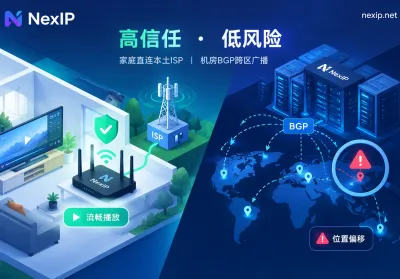
- Datacenter IP: Originates from data centers, low cost, but widely used for commercial purposes, easily identified or flagged by platforms, with relatively low purity.
- Residential IP: Originates from real home broadband users, extremely high purity, significantly more likely to be considered a "real user" by platforms. For multi-account operations and risk avoidance, residential IP is the first choice.
3. IP Stability and Speed: The stability and connection speed of proxy IPs directly affect work efficiency and user experience. Unstable IPs are prone to disconnection, while slow IPs slow down operations.
4. IP Purity: This is the most critical metric. A frequently abused or flagged IP, even if successfully configured, can expose your accounts to higher risks. Therefore, choosing a provider with high-purity IPs is crucial.
Here, we strongly recommend NexIP (YiLu Proxy). As one of the industry-recognized quality solutions, NexIP perfectly addresses the issues of anti-detection browser association and proxy IP purity. Its core advantages include:
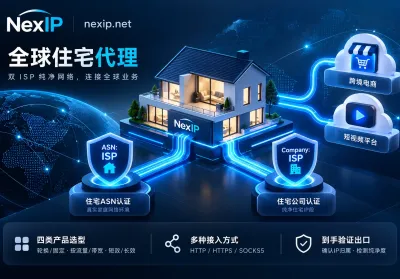
- Provides true home broadband (ISP) exclusive residential IPs, ensuring the highest IP purity and completely avoiding account collateral risks.
- Supports purchasing massive static/dynamic residential IPs covering multiple countries and regions worldwide, meeting IP needs for different geographic locations.
- Perfectly integrates with mainstream anti-detection fingerprint browsers such as AdsPower and BitBrowser, providing detailed configuration tutorials and technical support for a simple and efficient setup.
- Extremely high IP purity greatly reduces the probability of IP being identified and flagged, safeguarding your multi-account operations.
Preparations for Configuring Overseas Proxy IP in Fingerprint Browsers
Before starting configuration, completing the following preparations helps ensure the proxy IP works smoothly and protects privacy:
- Obtain a reliable proxy IP: Get the required overseas proxy IP from a quality provider like NexIP, typically including IP address, port, username, and password.
- Download and install a fingerprint browser: Ensure you have the latest version of a fingerprint browser (e.g., AdsPower) installed.
- Clear browser data: Before creating a new browser profile, it is recommended to clear all history, cache, and cookies to ensure a clean new environment.
- Know the proxy IP type: Confirm whether your proxy IP is HTTP/HTTPS or SOCKS5.
Step-by-Step Tutorial: Configuring Overseas Proxy IP in Fingerprint Browsers
Below are the general steps for configuring an overseas proxy IP, using AdsPower fingerprint browser as an example:
Step 1: Create a New Browser Environment or Edit an Existing One
Open your fingerprint browser software and log in. There is usually a "New Browser" or "New Profile" option. If configuring a proxy for an existing environment, select to edit that environment.
Step 2: Enter the Proxy Configuration Interface
In the settings interface for creating or editing a browser environment, find options like "Proxy Configuration" or "Network Settings."
Step 3: Configure Proxy Parameters
In this interface, you need to fill in the detailed information of the proxy IP:
- Proxy Method: Usually choose "Custom" or "Manual Configuration."
- Proxy Type: Select "HTTP," "HTTPS," or "SOCKS5" based on the type of proxy IP you obtained. NexIP typically offers multiple types for you to choose from.
- Host:Port: Enter the proxy IP address and corresponding port number you purchased. For example,
192.168.1.1:8888. - Proxy Username and Password: If the proxy IP requires authentication, fill in the corresponding username and password here. NexIP IPs usually require account and password authentication to ensure exclusivity and security.
- Refresh URL (optional): If you are using dynamic residential IPs, some fingerprint browsers may support configuring a refresh URL to automatically change the IP. NexIP also supports this feature.
Step 4: Test the Proxy Connection
After filling in all information, be sure to click "Check Proxy," "Test Connection," or a similar button. If it shows "Connection test successful," the proxy IP is configured correctly and can be used normally. If the test fails, carefully check whether the IP address, port, account password, and proxy type are entered correctly.
Step 5: Save and Apply Settings
After confirming the proxy connection test is successful, click "OK" or "Save" to complete the creation or update of the browser environment. Then, you can continue configuring other browser fingerprint parameters (such as user agent, time zone, screen resolution, etc.) and finally launch the dedicated browser environment with the proxy IP.
Post-Configuration Verification and Best Practices
After successfully configuring the proxy IP, you still need to verify and follow some best practices to ensure long-term operational security and efficiency:
- IP Address Leak Detection: Launch the configured browser environment and visit sites like whatismyip.com or browserleaks.com/ip to check if the displayed IP matches your configured proxy IP and ensure no WebRTC leaks.
- Browser Fingerprint Detection: Visit sites like amiunique.org to check if your browser fingerprint is unique and matches the expected configuration.
- Regular IP Rotation: For operations requiring high anonymity, it is recommended to change IPs regularly. Even for static residential IPs, you can change them as needed. NexIP provides a massive pool of IP resources for easy switching.
- Maintain One-to-One IP-Account Mapping: Ensure each account always uses a fixed (or region-specific) clean IP to avoid mixing and cross-contamination.
- Monitor Platform Policies: Continuously follow the latest policies of target platforms and adjust your operational strategy and proxy IP usage accordingly.
Frequently Asked Questions (FAQ)
What is a fingerprint browser and how is it different from a regular browser?
A fingerprint browser is a specially designed tool that can simulate or spoof multiple browser and device fingerprint information, such as User-Agent, Canvas fingerprint, WebGL fingerprint, fonts, time zone, language, etc. Unlike regular browsers (like Chrome, Firefox), it aims to create a unique, seemingly real "identity" for each browser profile, preventing platforms from associating multiple accounts through this information.
Why do I need to combine a fingerprint browser with an overseas proxy IP?
Although a fingerprint browser can disguise device and browser information, it cannot hide your real IP address. The IP address is key information used by platforms to identify user identity and location. Combining with an overseas proxy IP completely changes your external IP address and geographic location, building a complete, highly anonymous digital identity together with the fingerprint browser, effectively preventing account association and bans.
What are the main differences between residential IPs and datacenter IPs when choosing a proxy? Which is better?
Residential IPs originate from real home broadband users, have high purity, and are more likely to be recognized as "real users" by platforms, making them more suitable for multi-account operations and risk avoidance. Datacenter IPs originate from IDC server rooms, are low cost, but due to their widespread commercial use, are easily identified and flagged by platforms. For business requiring high anonymity and low risk, residential IPs are the better choice, especially NexIP's true home broadband exclusive residential IPs.
After configuring the proxy IP, how do I know it is effective and not leaking?
After configuration, launch your fingerprint browser profile and visit sites like whatismyip.com or browserleaks.com/ip to check if the displayed IP matches the proxy IP you configured. These sites can also detect WebRTC leaks to ensure your real IP is not accidentally exposed.
How does NexIP (YiLu Proxy) help me avoid account association risks?
NexIP helps avoid account association risks by providing high-purity true home broadband (ISP) exclusive residential IPs. Each IP originates from a real user and offers a vast selection, ensuring you can assign a brand-new, uncontaminated independent IP to each fingerprint browser profile. This fundamentally cuts off association risks between different accounts caused by identical or flagged IP addresses, greatly enhancing account security.


Comments(0)