 NexIP官方博客
Bottom Line: When Residential Proxies Are Slow, First Diagnose by Segment, Then Consider Switching Providers
How to diagnose and optimize high latency in residential proxy networks? Focus on four conditions: whether the connection is established smoothly, whether the last mile is stable, whether the backbone transit is detouring, and whether the exit to the target site is throttled. Measure each segment to find the true bottleneck. In January 2026, Proxystats.io's evaluation reports also shifted to observing segmented latency and P95 tail latency; a single average ping is no longer sufficient.
Many teams switch providers at the first sign of lag, only to find it's still slow—because the slowdown often lies in just one segment. The methods below rely only on curl, ping, and mtr—built-in or common command-line tools—with no need for additional speed-test services.
First, Distinguish Between Link Slowness and Exit Throttling: How to Differentiate the Two Symptoms
Sometimes you encounter a situation where the proxy IP's ping is normal but web pages load slowly. This usually points to exit identity or processing on the target site's side, not the link itself. If ping is low and connection is fast, but the page content takes forever to appear, it's likely the target site is throttling or rate-limiting the exit IP. In this case, switching nodes is less effective than changing the IP type.
Conversely, if packet loss is evident, connections frequently time out, and live streaming shows artifacts, the problem is more likely the link—the last mile from the gateway to home broadband, the provider's backbone transit, or exit detours. Use the following two commands to differentiate:
To check connection establishment and time-to-first-byte (TTFB), use this command:
curl -o /dev/null -s -w 'connect:%{time_connect} tls:%{time_appconnect} ttfb:%{time_starttransfer}\n' http://目标地址To check packet loss and jitter, use this command:
ping -c 20 代理网关IPor
mtr -c 20 目标域名If ping packet loss exceeds 1% with high variance, prioritize the link layer; if ping is normal but TTFB is notably long, focus on whether there's detouring or throttling between the exit and the target site.
Four Link Segments: Where Each Segment (Connection, Last Mile, Backbone Transit, Exit to Target) Can Be Slow
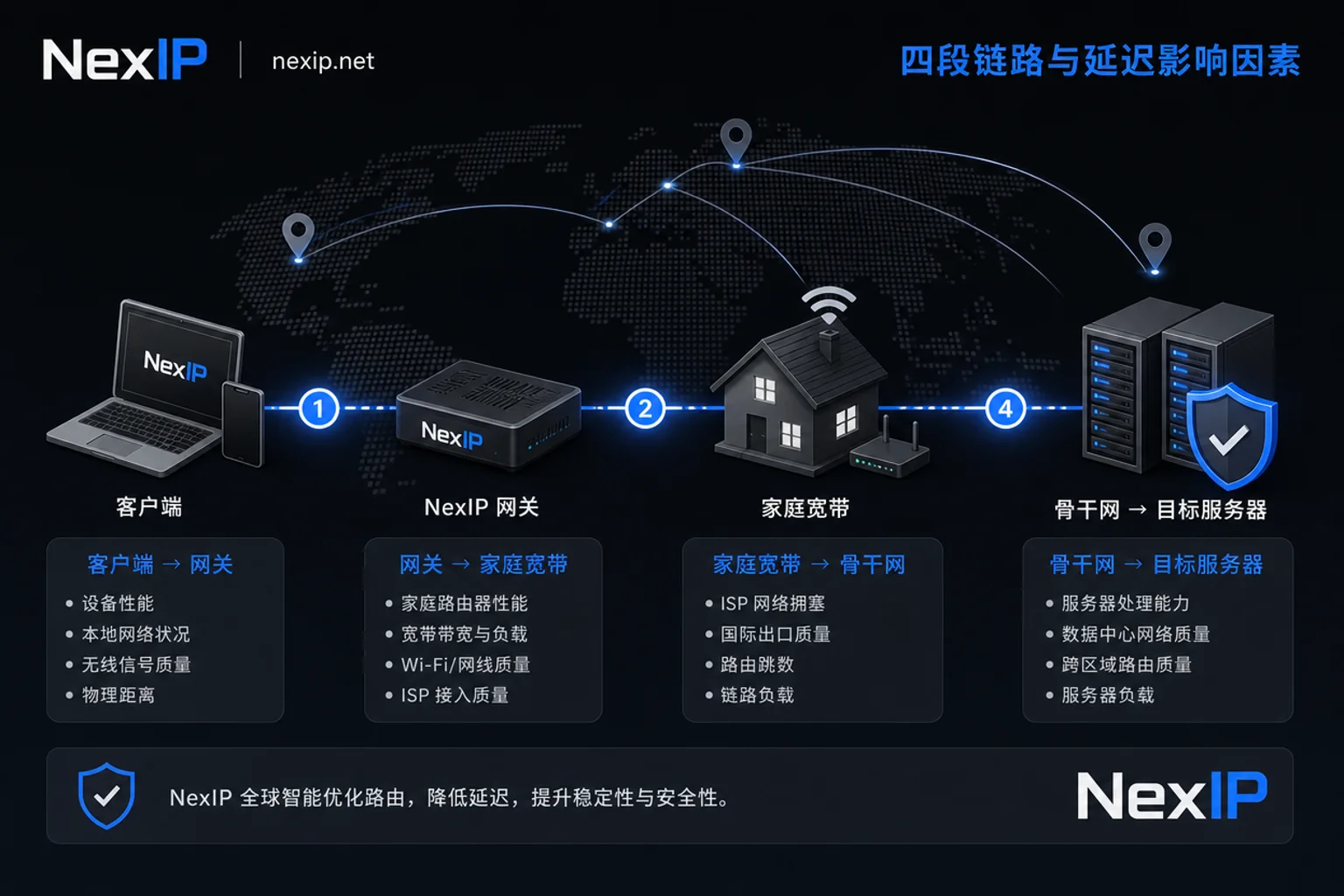
Breaking down the link structure, residential proxy latency is composed of four segments: the TCP/TLS handshake from client to gateway, the last mile from gateway to home broadband, the provider's backbone routing, and the exit to the target server. To answer "which segment is causing high latency," you need to measure each.
- Connection Segment: The client initiates TCP and TLS handshakes. Poor local network or distant proxy gateway increases RTT, typically tens to hundreds of milliseconds, but rarely causes multi-second stalls.
- Last Mile: The physical link of the real home broadband; bandwidth and stability vary. This is the fundamental difference between residential proxies and datacenter IPs. High variance here causes jitter and occasional packet loss.
- Backbone Transit: International routing between provider data centers. Detours or congestion can multiply latency, especially on unpopular routes. Competitors like kookeey and Bright Data already offer nearby backbone transit switching to reduce cross-border jitter.
- Exit to Target Site: The final hop from the exit IP to the target server. If the target site applies strategic throttling to residential IPs, it manifests as a long TTFB.
How to Test: Segment Durations, Continuous Sampling, and P95 Observation, Not Just a Single Average
When it comes to diagnosing and optimizing high latency in residential proxy networks, the operational key is continuous sampling rather than relying on a single average.
The most common pitfall is treating average latency as the conclusion. Averages are skewed by a few high values and can mask occasional blockages. For jitter, P95 is more informative—it represents the latency ceiling for 95% of requests. For example, suppose one sampling run has an average of 1.5 seconds, but P95 is 8 seconds, indicating 5% of requests severely time out—exactly the ones causing task failures.
The 1-3 second average response cited earlier is from third-party testing and used to set expectations, not as a commitment from any provider. If P95 exceeds the average by more than double, examine the specific link.
In practice, take at least 200 consecutive requests, record total and per-segment durations, and calculate P50 and P95. Command-line tools like awk or jq can help. Also sample at different times: morning, afternoon, and evening, as the target site's timezone peak hours are often the slowest.
Correction: Why Residential Proxies Can't Match Datacenter IPs' Ultra-Low Latency
Some marketing claims residential proxies can achieve millisecond-level latency comparable to datacenter IPs—that's unrealistic. Due to the real home network's last mile and multi-hop transit, the physical layer dictates that residential proxies cannot achieve datacenter-grade low latency or zero packet loss. Understanding this sets reasonable expectations: the value of residential proxies lies in identity authenticity and concurrent success rates, not extreme speed. If you need millisecond latency, use datacenter IPs directly; if you need stable and authentic exit IPs, choose residential proxies. For the applicable boundaries of the two IP types, refer to Residential IP vs Datacenter IP Differences.
Set Tolerance Lines by Use Case: Streaming, Login-State Operations, and High-Concurrency Scraping
Different businesses have different latency sensitivities and tolerance thresholds.
| Business Type | Core Metrics | Self-Test Baseline (Set Based on Your Business's Actual Measurements) | Priority Optimization Segments |
|---|---|---|---|
| Cross-border Live Streaming | Jitter, Packet Loss | Whether packet loss and jitter are significantly higher than the direct-connection baseline at the same time | Last Mile, Backbone Transit |
| Login-State Operations (e.g., store/social account management) | Session Stability, Fixed Exit IP | Whether exit IP remains unchanged within a task cycle and sessions stay intact | Static IP, Fixed Exit |
| High-Concurrency Scraping | Throughput, Success Rate | Whether P95 stays within twice P50 and failure rate doesn't rise with concurrency | Connection, Backbone, Connection Pool |
The above are relative criteria; specific thresholds need to be measured on your own link and target site, as there's no industry standard. For cross-border live streaming lag, first determine if it's a proxy or network issue: if packet loss is normal but stream quality is poor, it might be target site or encoding; if packet loss is high and jitter is large, prioritize checking the last mile and backbone. Login-state operations are not sensitive to latency but are highly sensitive to a fixed exit IP—dynamic IP rotation can cause session drops.
Optimization Sequence: Nearby Entry Points and Routing, DNS Resolution Affiliation, Session Stickiness and Concurrency Budget, Connection Pool Reuse
After diagnosis, optimize from easy to hard:
- Nearby Entry Points and Routing: Choose nodes closer to your business region to significantly reduce backbone detours. Competitors offer dedicated entry customization and nearby backbone transit switching; use these capabilities first to validate.
- DNS Resolution Affiliation: Customize local DNS resolution to avoid resolving to distant or polluted servers, speeding up connection establishment.
- Session Stickiness and Concurrency Budget: Enable session stickiness (Sticky Session) in scraping tasks to keep the IP as unchanged as possible, reducing repeated handshakes; and control concurrency to avoid exceeding link capacity.
- Connection Pool Reuse: Establish an HTTP connection pool to reuse TCP connections, avoiding repeated handshakes per request. This is the most common optimization for high-concurrency scraping.
After each step, re-measure P95 to see if it has dropped before moving to the next. Additionally, if there's no improvement after adjustments, refer to SOCKS5 vs HTTP Proxy Protocol Performance in Cross-Border Scenarios to choose a more suitable protocol.
Applied to NexIP: The Role of Dynamic Residential, Static Short-Term, and Static Long-Term IPs in Latency-Sensitive Scenarios
Translating segment conclusions into product selection: The last mile has high variance; scraping tasks that tolerate jitter are suitable for dynamic residential proxy bandwidth plans, paired with session stickiness and connection pools. Login-state operations and live streaming require a fixed exit IP, so use static short-term or long-term residential IPs, possibly combined with overseas live streaming dedicated lines. Geo and city/ASN targeting can shorten exit-to-target detours.
Specifically, API-extracted dynamic IPs are suitable for high-concurrency crawling where the exit IP changes per request, while multi-account operations and store backend management must rely on fixed-exit static long-term residential IPs, ideally 1:1 bound with anti-detect browsers. For the difference between static and dynamic IPs, see Static IP vs Dynamic IP Differences.
Diagnostic Checklist
- Have you used continuous sampling instead of a single average? At least 200 samples, recording P95.
- Have you measured connect and TTFB separately? Identified the specific segment.
- Have you sampled at different times? Is the evening peak noticeably worse?
- Does your packet loss test cover more than 20 packets? A single ping is unreliable.
- Have you tried nearby entries, DNS customization, and connection pools?
FAQ
How to Quickly Determine Which Segment Has High Latency?
First run curl to see connect and TTFB, then use mtr to check routing. A long connect time indicates slow connection establishment or local network; a long TTFB suggests exit or target site throttling; high packet loss points to last mile or backbone issues.
To check connect and TTFB:
curl -o /dev/null -s -w 'connect:%{time_connect} tls:%{time_appconnect} ttfb:%{time_starttransfer}\n' http://目标地址To check routing and packet loss:
mtr -c 20 目标域名Why Is Ping Normal but Web Pages Load Slowly?
It's often due to the target site's risk control throttling the exit IP, not the link itself. Switching IPs or using a static residential IP usually resolves it.
How to Test Residential Proxy Packet Loss Accurately?
Use mtr or ping to send more than 20 packets continuously and check the loss rate. If loss exceeds 1%, test multiple times in the same period to rule out occasional events. Also compare loss rates across different nodes to locate the problematic segment.
To check packet loss:
ping -c 20 代理网关IPWhat If Latency Remains High After Switching Nodes?
First confirm whether the route actually changed after switching nodes, and then check if the target site is throttling. If all nodes are slow, it might be overall congestion on the last mile or backbone; consider using a dedicated entry or testing during off-peak hours.
How to Distinguish Between Proxy and Network Issues for Live Streaming Lag?
Check packet loss and jitter. If packet loss is normal but streaming is choppy, it might be encoding or target site; if packet loss is persistently high, it's a network issue. Use mtr to see which segment is dropping packets, then decide whether to change the line or optimize encoding.
Summary
Diagnosing and optimizing high latency in residential proxy networks essentially involves breaking down the multi-segment combined latency. First, use the four-segment method to identify the problem segment, then quantify with P95 and packet loss rates, and finally choose the right IP type based on your business. Recommend collecting your own P50/P95 data before making judgments. For product selection by use case, refer to NexIP's dynamic and static residential IP product descriptions.



Comments(0)